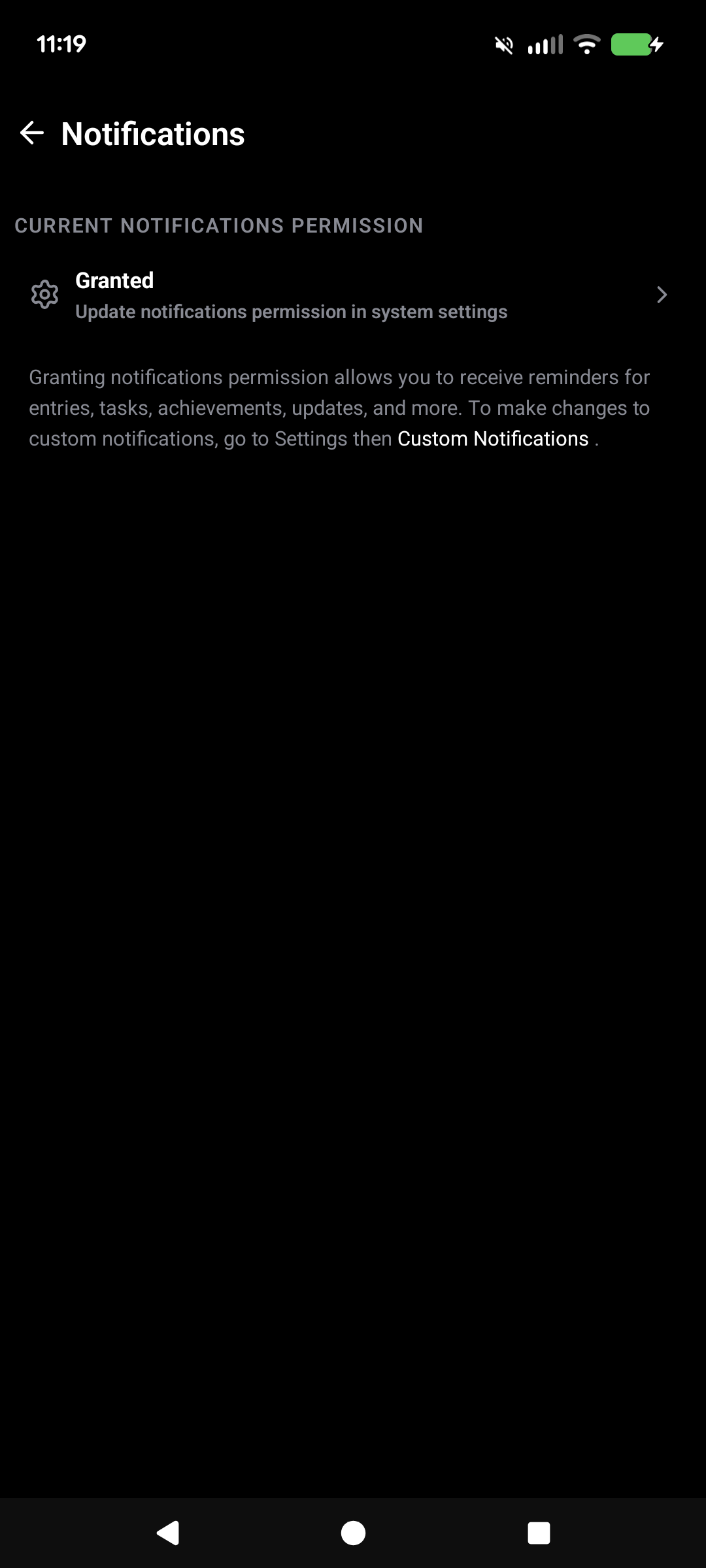
1. Allow them on your phone.
In Mindwell, go to Settings → Permissions → Notifications to update your device permissions.
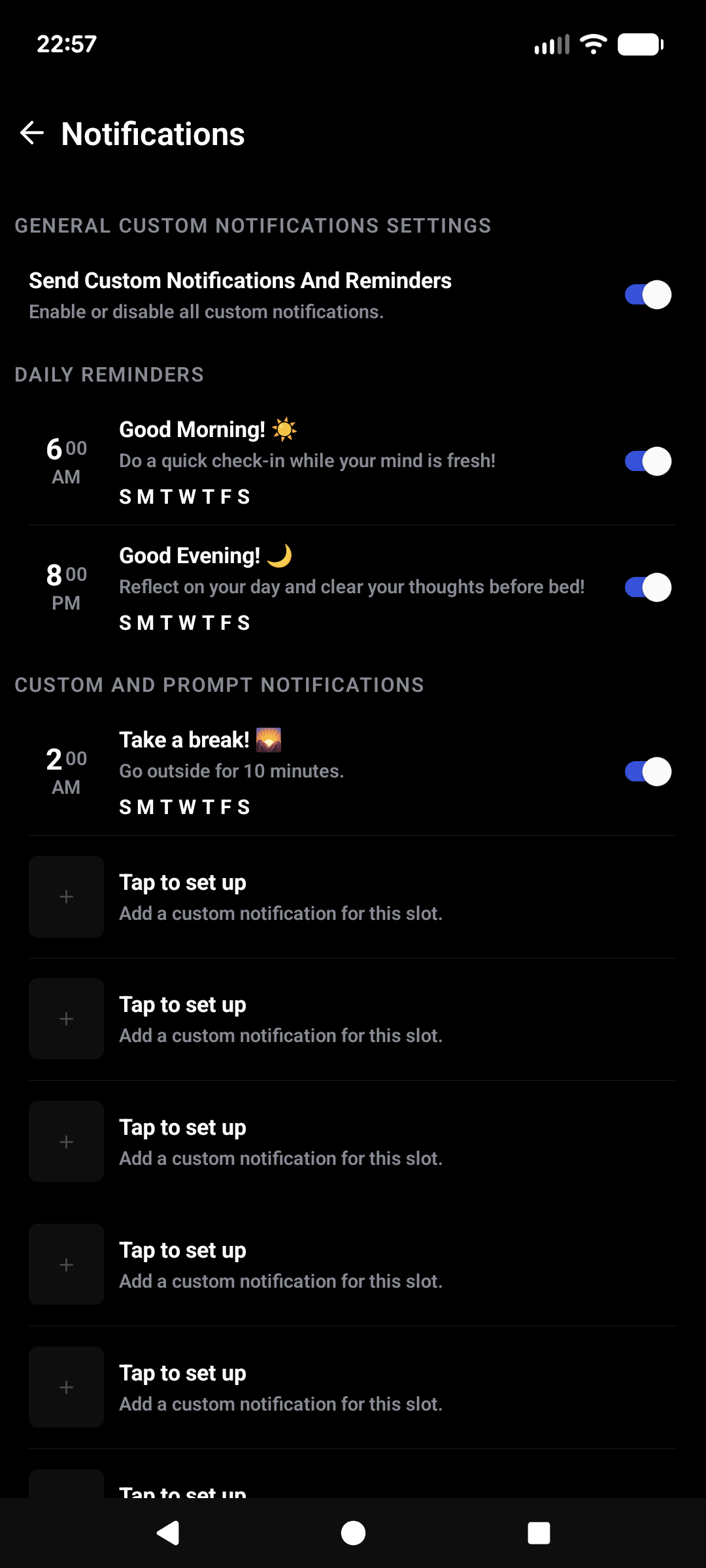
A gentle reminder, a message from yourself, or a question worth pausing for. Choose what arrives and when.
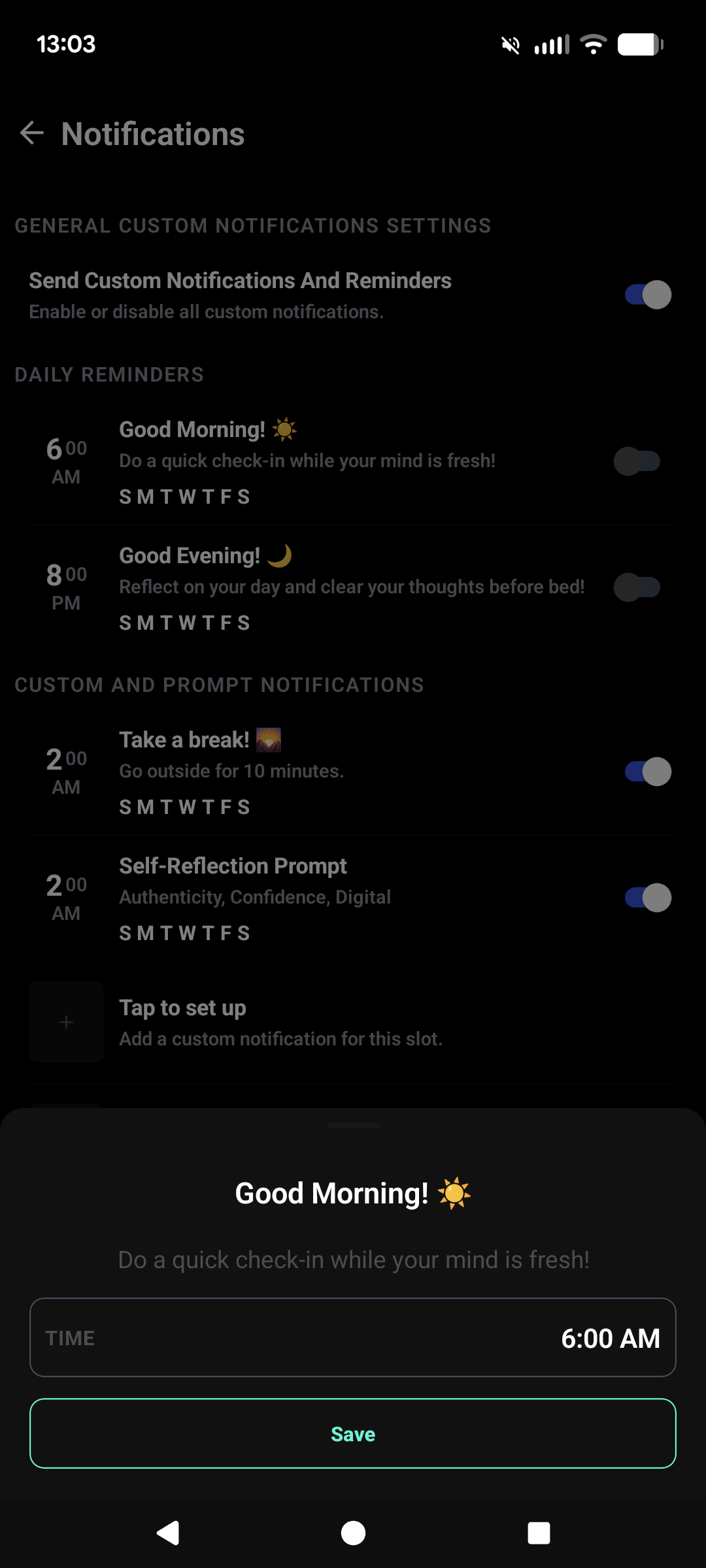
A morning check-in. An evening reflection. Two familiar points to return to yourself.
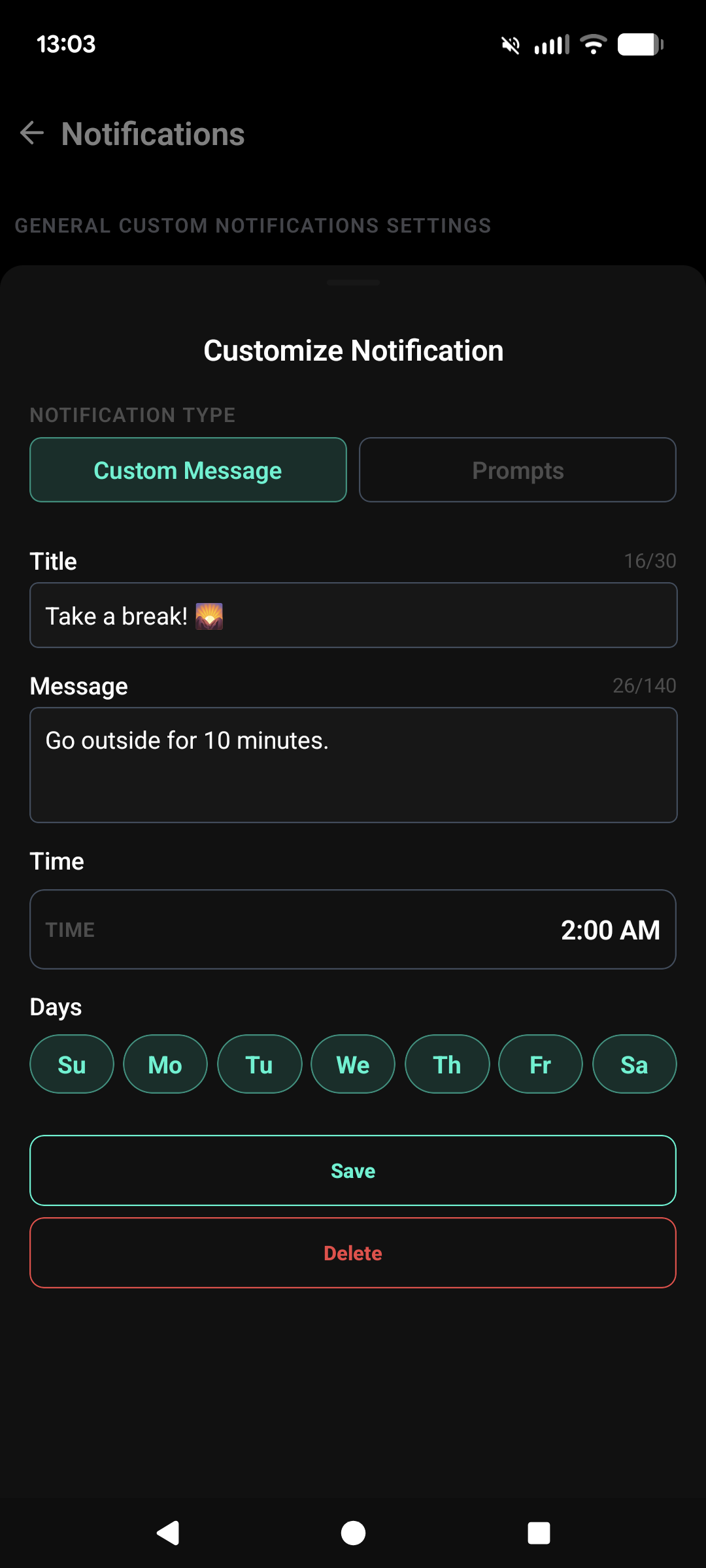
A reminder, a little encouragement, or an intention you want to carry into the day.
Receive a prompt from the topics and types you choose. Reflect on it, act on it, or share it.
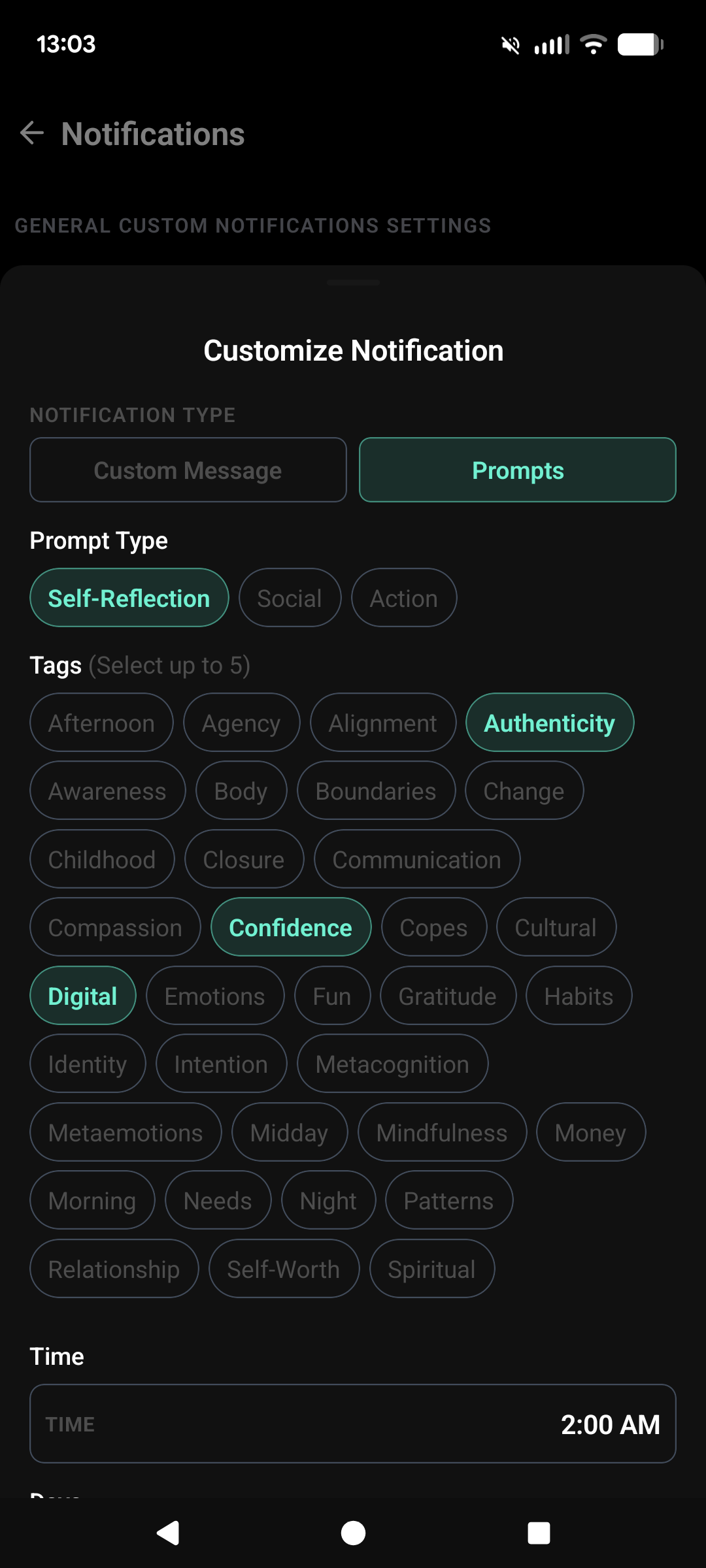
Free accounts include one shared custom-or-prompt notification slot. Paid plans unlock up to ten. Daily reminders are separate.
Compare plansIn Mindwell, go to Settings → Permissions → Notifications to update your device permissions.
Open Custom Notifications in Settings. Turn on the main switch, then enable the reminders you want.
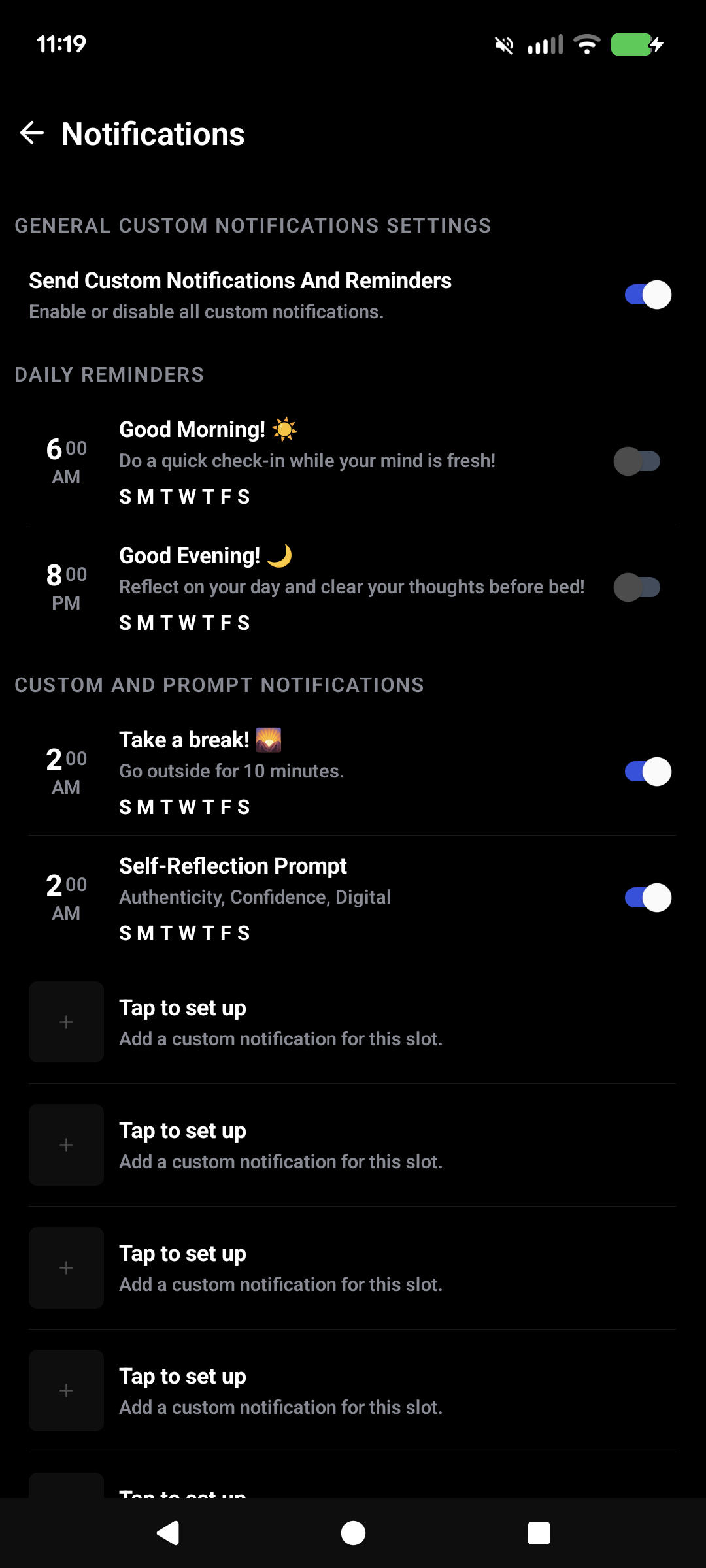
Yes. Sign in to set up daily reminders, custom messages, and prompt notifications in the mobile app.
Yes. Turn off an individual notification or use the main notification switch in Mindwell. You can also change notification permissions in your phone settings.
Notifications are delivered around your selected time. Your device settings and delivery conditions can affect when they appear.